
Read both sides of your quota.
Each usage window shows the percentage consumed and the percentage remaining. In the capture above, 37% used means 63% remaining in the five-hour window.
 Claude
  Visual Studio 2026
Use the Claude subscription you already have for C# and .NET in Visual Studio 2026. iolys brings Claude Code into your IDE, with your remaining quota, model controls, tools, and skills close to your code.
Sign in with an eligible Claude subscription. Your work uses that account’s Claude Code allowance; no API key is needed for this connection.
How subscription access works ↗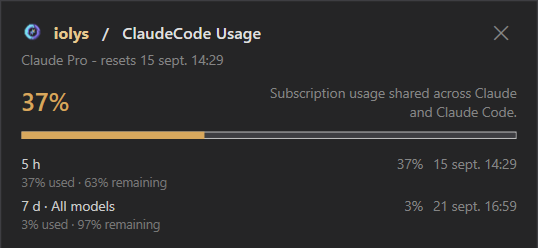
01 / Remaining quota
Open Show usage from the chat toolbar. See the allowance reported by your Claude account without leaving your solution.
Each usage window shows the percentage consumed and the percentage remaining. In the capture above, 37% used means 63% remaining in the five-hour window.
Follow the shorter window alongside your weekly allowance. Reset dates appear in your local time, so you can see when each window renews.
These quotas are shared across Claude and Claude Code. iolys reads your account’s reported usage when you open the window.
Model-specific weekly limits and enabled monthly extra usage appear when available. The view follows the quotas returned for your account.
The screenshot is an example captured on September 15, 2026. Your plan, limits, and remaining allowance may differ. All currently available iolys features are free; your Claude subscription remains separate.
Claude’s subscription usage guidance ↗02 / Inside Visual Studio
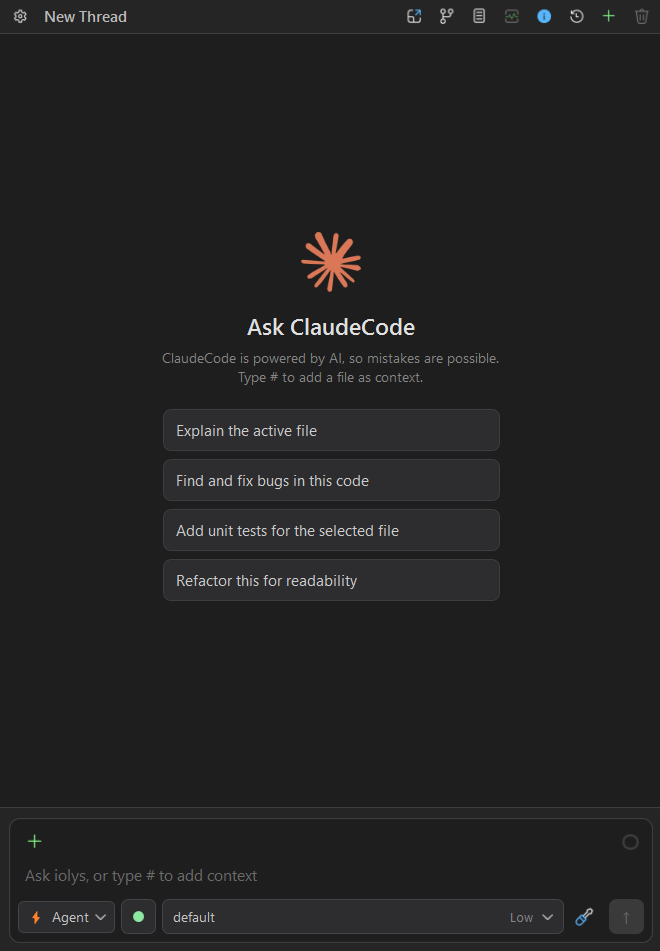
Keep your conversation beside your C# and .NET solution. Give Claude the relevant context and follow its work through the iolys interface.
03 / Models & reasoning effort
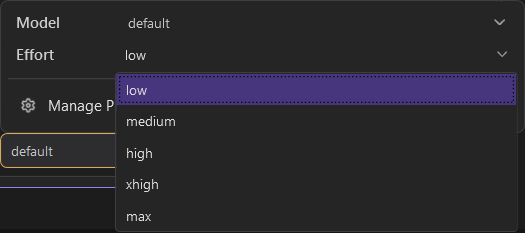
Open the model options beside your prompt. Claude’s supported settings stay within reach as you move from a quick question to a deeper investigation.
“Trace this failing test through the solution, fix the cause, and run the relevant tests.”
Choose your model, reasoning effort, and enabled tools before starting.Model availability and effort levels depend on your account and the locally managed Claude Code CLI.
04 / Manage Providers
iolys downloads and manages the Claude Code CLI locally from Manage Providers. Keep installation, updates, and version selection in one place.
Compare your installed Claude Code CLI with the latest available version and see its update status.
Select a newer available version and use the Update to action to install it locally.
Choose an older version from the list to see the Downgrade to action before applying the change.
iolys maintains its own Claude Code installation. Changing its version leaves your separate personal Claude Code installation unchanged.
Selecting a release alone does not install it. Available versions follow the list in Manage Providers.
05 / Web tools & skills
Claude’s native web tools and your project skills work alongside the iolys tools for your solution. Manage them from Tools and Skills.
Enable Web Search and Fetch URL independently under Model Tools. Ask Claude to find documentation or read a page, then apply what it learns to your code. Calls and results appear in the conversation.
“Read this library’s migration guide and identify what needs to change in my .NET project.”
Reuse iolys skills and supported project skills from .claude/skills and .agents/skills. Select one with /skill:name, or allow Claude to load a relevant skill automatically.
Give a code review, testing workflow, or project convention a home your next task can use.
Skills load through iolys and use its enabled tools and permissions. Claude-specific hooks, shell interpolation, and skill model overrides are not applied.
Connect Claude
Install the official Claude Code CLI from the iolys provider panel, sign in, and choose your model. Setup stays inside your Visual Studio workflow.
Open Manage Providers in iolys and add Claude Code (CLI).
Install the locally managed CLI, choose Connect, and complete Claude’s browser sign-in with your subscription account.
Select a Claude model and its reasoning effort, then start a task from your Visual Studio 2026 solution. Open Show usage to check your remaining allowance.
Install the iolys extension for Visual Studio 2026 and open your C# solution. Open Manage Providers in iolys and add Claude Code (CLI). Install the locally managed CLI, choose Connect, and complete Claude’s browser sign-in with your subscription account. Select a Claude model and its reasoning effort, then start a task from your Visual Studio 2026 solution. Open Show usage to check your remaining allowance. You can then ask Claude to help with your C# and .NET code from the iolys workspace.
Yes. iolys is a VSIX extension for Visual Studio 2026, and Claude is one of the provider connections it ships with. Install the iolys VSIX once from the Visual Studio Marketplace, then add Claude from the Manage Providers panel; there is no separate VSIX per provider.
Yes, with the iolys extension. It connects the Claude Code CLI to Visual Studio 2026 and uses the Claude Code access included in your eligible subscription against the active C# or .NET solution, with your remaining quota, model and effort controls, tools, and skills in the IDE.
Yes. Add Claude Code (CLI) and sign in with an eligible Claude account that includes Claude Code access. iolys supports the subscription connection for Pro, Max, Team, and Enterprise accounts, subject to your plan and organization’s access settings. Usage counts toward your Claude subscription’s allowance.
No. The Claude Code (CLI) provider uses your Claude subscription sign-in. The separate Anthropic provider is available for API-key access and its own billing.
Yes. Open Show usage from the chat toolbar. ClaudeCode Usage displays both the percentage used and the percentage remaining for each reported window, including the 5-hour and 7-day limits, plus reset times in your local time. Model-specific weekly limits and enabled monthly extra usage appear when Claude reports them.
No. These are account-wide subscription quotas shared across Claude and Claude Code. iolys reads the usage reported by Claude when you open the Usage window; the values are not estimates based on the current chat’s token count.
Yes. Open the model options beside your prompt. Available models and effort levels come from your Claude Code connection. Changing them preserves the conversation’s Claude session.
Use # to reference files, or attach the active document, a selection, or an image. Claude uses the enabled iolys tools to read and edit code, run builds and tests, and work with your solution. Tool activity and permission requests appear in the conversation.
Yes. Web Search and Fetch URL appear under Model Tools and can be enabled independently. Claude also uses iolys skills, including supported project skills from .claude/skills and .agents/skills. Select a skill with /skill:name or allow automatic activation. Claude-specific hooks and shell interpolation are not applied.
No. Install and manage the official CLI locally from Manage Providers in iolys, then choose Connect. iolys manages its own Claude Code installation and sign-in.
Yes. In Manage Providers, select Claude Code (CLI) to compare the installed and latest CLI versions. Select a newer available release to update, or an earlier release to display the Downgrade to action. Selecting a version alone does not install it; apply the change with the corresponding button. iolys manages its own installation, separately from your personal Claude Code installation.
Check the subscription connection and update the managed Claude Code CLI in Manage Providers, then reopen Usage. Usage reporting depends on a compatible CLI and Claude’s quota service. Missing values are shown as unavailable.
Yes. All currently available iolys features are free for personal and commercial use. Your Claude subscription supplies your AI access separately, and Claude’s plan eligibility and usage limits still apply.
Explore other providers for Visual Studio 2026
Keep your active solution, provider access, and development workflow.
Get iolys for Visual Studio 2026 Codex
Codex Kiro
Kiro Ollama