
iolys 2026 November Update 2: Writing mode in Visual Studio
Expand and resize the iolys chat input in Visual Studio so you can write longer prompts and keep the conversation in view.
Writing a prompt with several requirements or a stack trace? Writing mode gives you more room in iolys Chat while keeping the conversation in view.
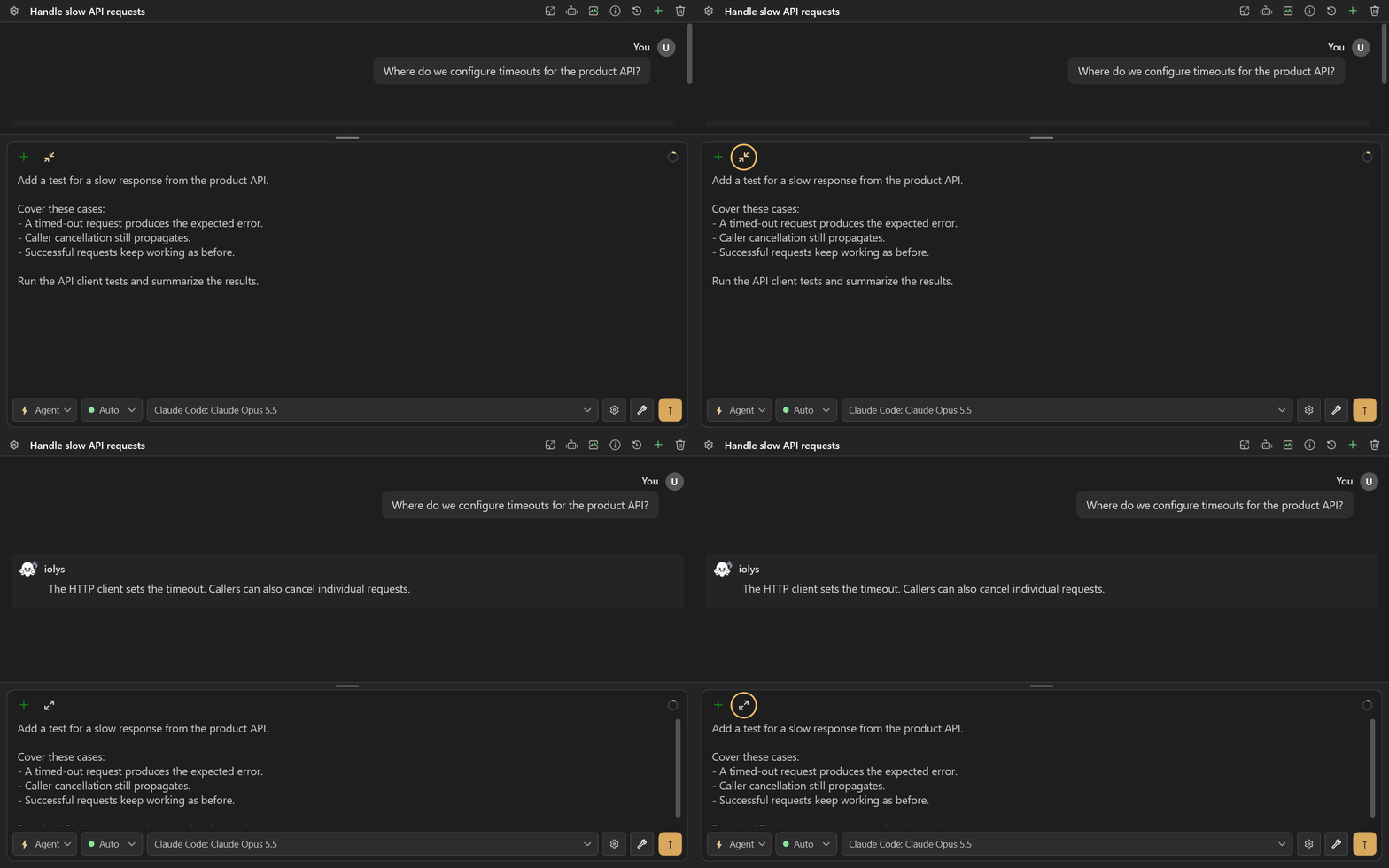
Demonstration with a sample conversation.
Expand the message box in one click
Select Writing mode next to the green + above the message box. You can read more of your draft at once and still refer to the conversation above it. Select Exit writing mode to return to the usual layout.
For a smaller adjustment, drag the handle above the message box. Double-click the handle to restore its automatic height. The conversation keeps its scroll position as you resize, so you can pick up where you were reading.
Thanks to @Kristos for suggesting Writing mode.
Also improved
- Chat — Double-click inside the message box to select the entire draft and replace it in one move. Paste screenshots into the chat with the standard Paste command. Thanks to @ranasrule for suggesting these improvements.
- Provider setup — The CLI installation screen now shows a download progress bar, a Cancel button, and clearer error messages. The model picker shows available models while other catalogs finish loading.
 Ollama Cloud — During long runs, iolys asks the model for brief progress updates so you can follow the work while it continues.
 Kiro and
 Kimi — Workspace skills work again with Kiro CLI 3. Kimi reconnects more reliably and can show account usage for both sign-in regions.
- Startup and provider setup — iolys can repair a damaged local server installation so you can get back to your chat. Provider setup works better behind some corporate proxies.
 Grok — Interrupted downloads are retried automatically.
Install iolys for Visual Studio and try Writing mode on your next detailed prompt.
Share your feedback
Have an idea for improving iolys? Tell us on Discord.